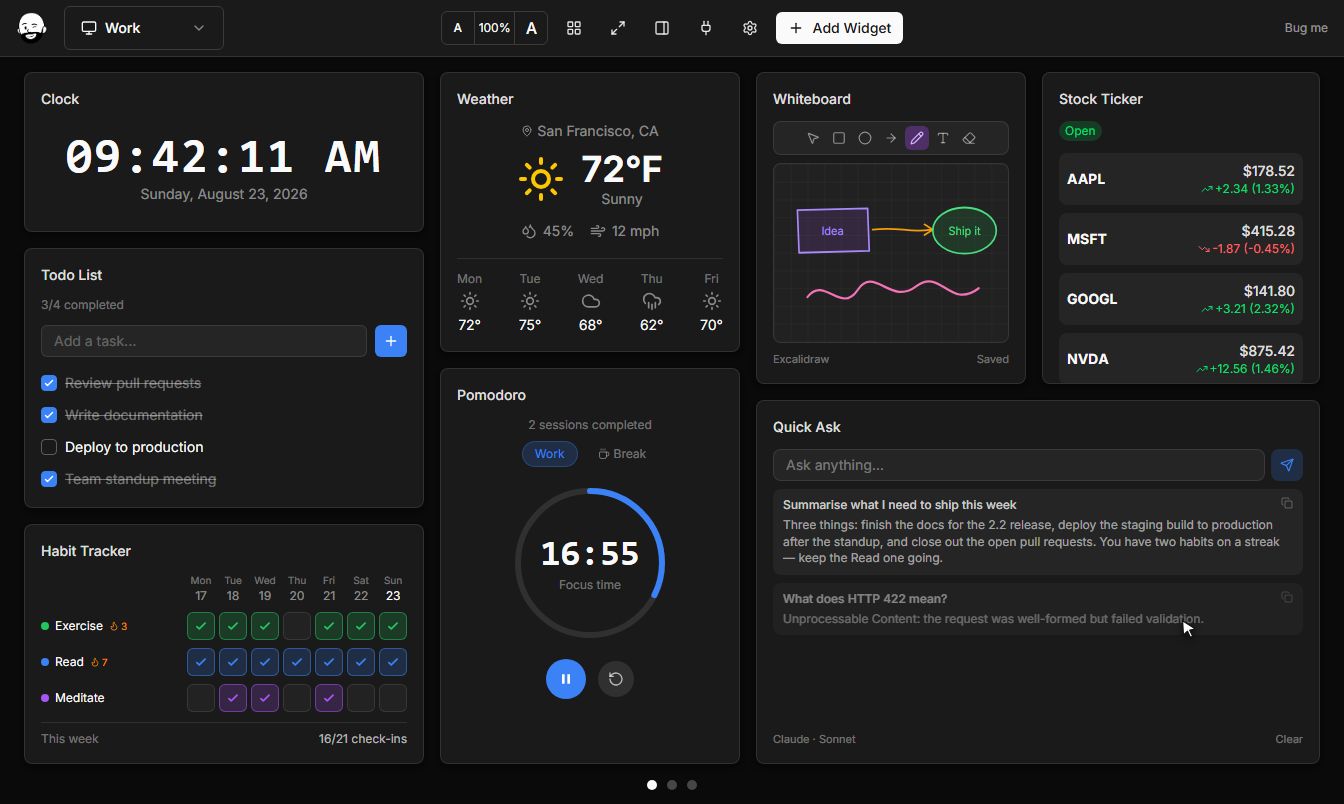
Slack widget for Windows
Point it at one channel and it reads like Slack rather than like an API response. Author IDs are resolved against the workspace directory, so you see names and avatars instead of U04QK2J1X; mentions, channel links and URLs are unwrapped into readable text; bold, italic, code and code blocks render properly; and reactions, file attachments and thread reply counts come through. Consecutive messages from one person share a header the way they do in Slack itself, and joins and leaves are hidden by default so a quiet channel stays quiet. One connection covers the whole workspace, so a second channel is a second tile and not a second setup.
Free · Windows 10 and 11 · No account required
The real Slack widget, running live. Drag it around.
What Slack is good for
The everyday jobs this widget was built to handle.
Keep an eye on #incidents or #deploys without alt-tabbing into Slack
Watch a client channel from your dashboard while you work in something else
Put a bot's deploy or alert channel next to the graphs it is talking about
Follow a busy channel at a glance without opening a thread you did not need
Slack also appears in Integrations as an ordinary connection, which is the other half of the same token: channels and their member counts, people against bots against deactivated accounts, recent message and thread counts for one channel, workspace details, and shared files with their total storage. Those become Live Data tiles, so the number of open threads can sit on a gauge beside the conversation itself. Add the connection once with a bot token and both halves work.
Every Slack setting
8 options, set per widget - so two copies of Slack on the same dashboard can behave completely differently. Highlighted values are the defaults.
Message count
Show avatars
Show timestamps
Show reactions
Advanced
Group consecutive
Hide join leave
Refresh interval
Order
Getting Slack on your desktop
- 01
Install
Download and run the installer. No account, no sign-in.
- 02
Add the widget
Hit Add Widget, or press Ctrl+K and search for it by name.
- 03
Make it yours
Drag it where you want, resize it, and set the options below.
More Data & Monitoring widgets
Slack is one of 95 widgets
They all live on the same customizable dashboard, with themes, multiple screens, and native Windows notifications. Free.
Download for Windows