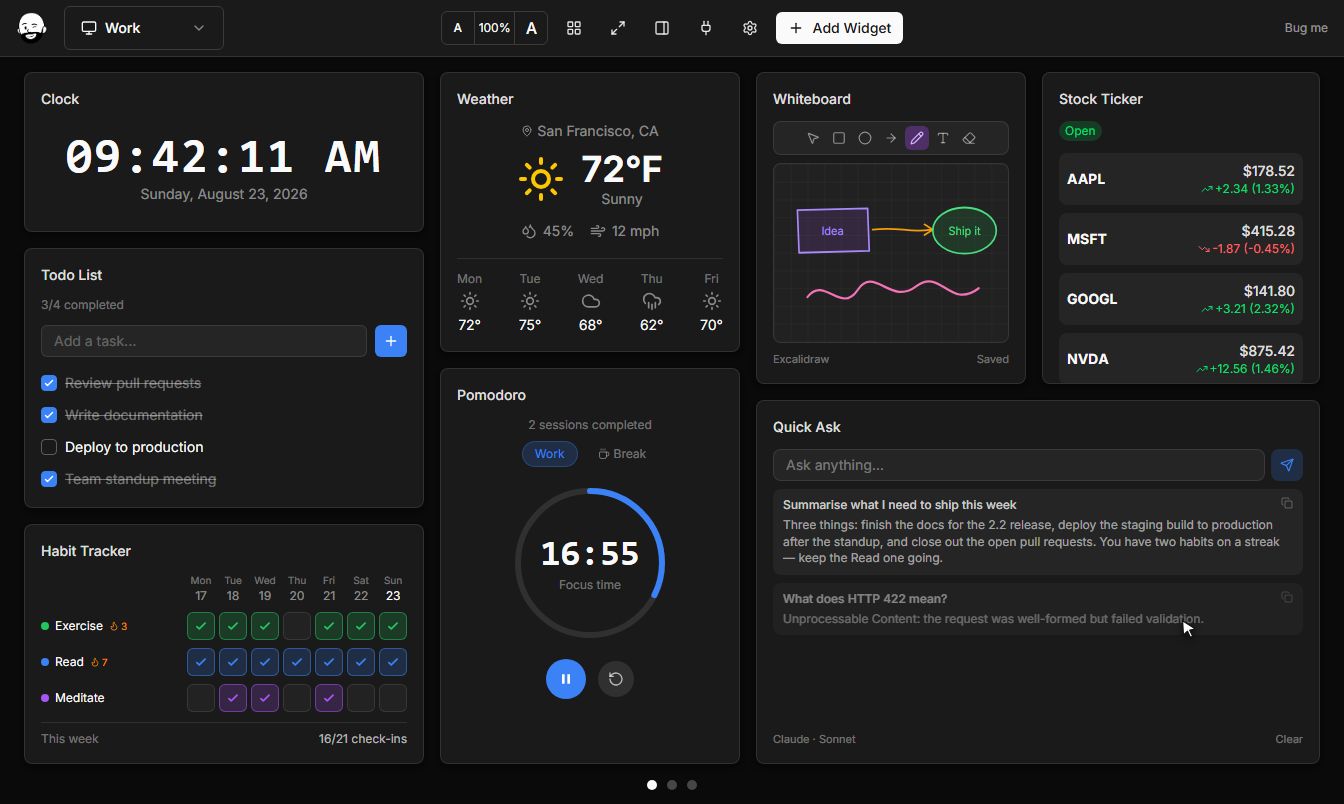
Whiteboard widget for Windows
A full Excalidraw canvas in a tile. Boxes, ellipses, arrows, freehand lines and text, with the familiar hand-drawn look, pan and zoom. Everything you draw is saved as you go, so it is there when you come back. Resize the tile to give it more room, switch it to light or dark to match your theme, turn on a grid for neater layouts, or use zen mode to hide the toolbar and keep only the drawing.
Free · Windows 10 and 11 · No account required
The real Whiteboard widget, running live. Drag it around.
What Whiteboard is good for
The everyday jobs this widget was built to handle.
Sketch an architecture or flow while you talk it through
Keep a scratch diagram next to the code it describes
A visual to-do or mind map that stays on your desktop
Every Whiteboard setting
5 options, set per widget - so two copies of Whiteboard on the same dashboard can behave completely differently. Highlighted values are the defaults.
Theme
Show grid
Zen mode
Page template
Advanced
Auto save delay
Getting Whiteboard on your desktop
- 01
Install
Download and run the installer. No account, no sign-in.
- 02
Add the widget
Hit Add Widget, or press Ctrl+K and search for it by name.
- 03
Make it yours
Drag it where you want, resize it, and set the options below.
More Productivity widgets
Whiteboard is one of 95 widgets
They all live on the same customizable dashboard, with themes, multiple screens, and native Windows notifications. Free.
Download for Windows