Windows 11 Widgets vs Paul’s Dashboard.
Windows 11 ships a widgets board: press Win+W and a panel slides out with weather, news and a few others, then hides again. Paul’s Dashboard keeps 100 widgets on screen, on your wallpaper under your apps or in a window of their own. Here is how they compare, including what the built-in one does better.
Free · Windows 10 and 11 · No account required
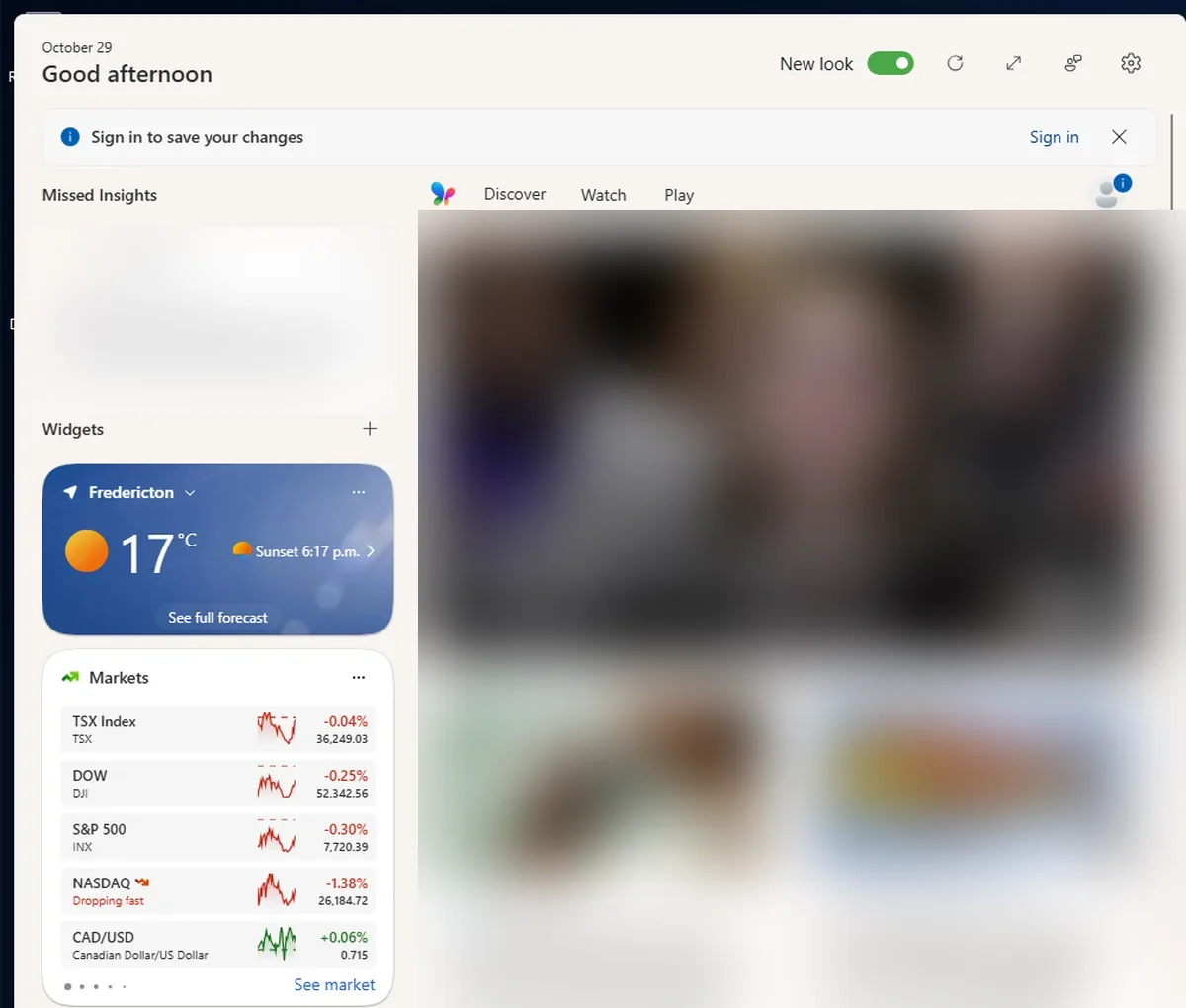
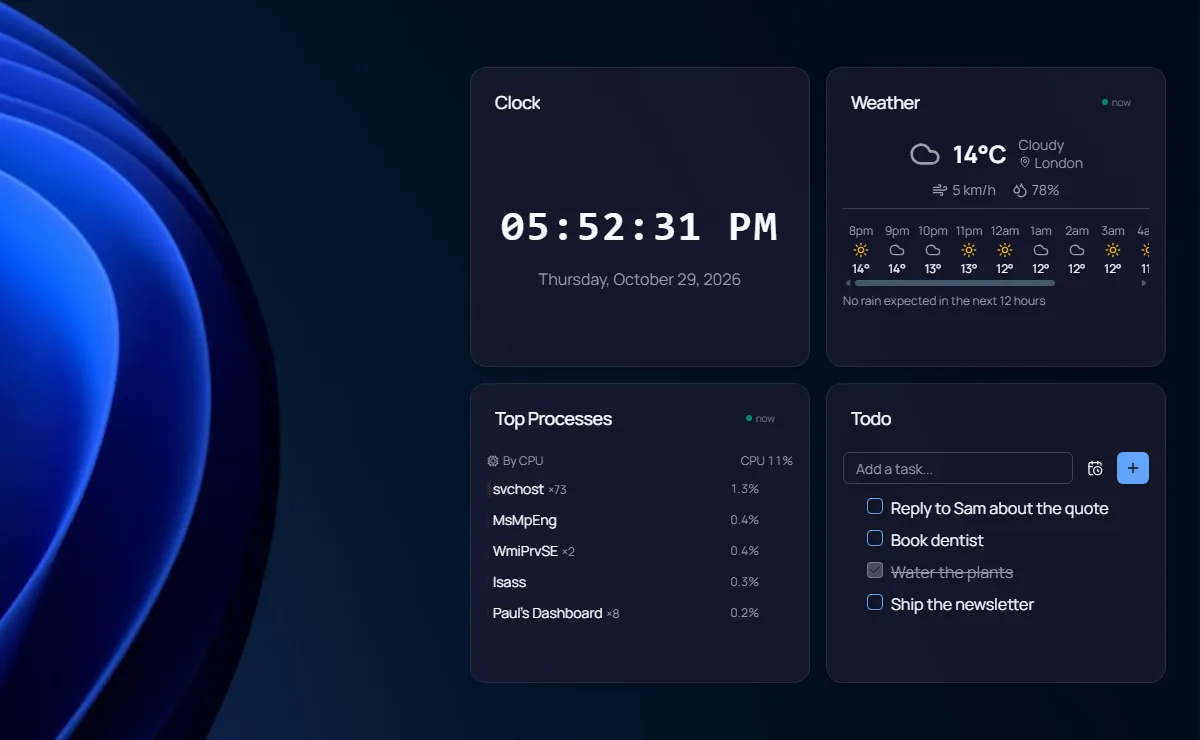
Screenshots we took of both apps on Windows 11, October 2026.
Which one is for you?
Get Windows 11 Widgets when
- You want nothing extra installed, ever
- Glancing at weather now and then from a fly-out is all you need
- You want weather on the lock screen
- Your company manages everything through Windows itself
Get Paul’s Dashboard when
- You want widgets that stay on the desktop instead of a panel you summon
- You do not want a news feed between you and your widgets
- You want to style them: themes, fonts, colours, transparency, any size
- You want system stats, todos, timers, live data and your own API sources
- You want links to open in your browser, not one picked for you
The whole comparison
Both columns written by the Paul’s Dashboard side, so read the left one as the steelman: where Windows 11 Widgets is better, it says so. Facts about Windows 11 Widgets checked October 2026.
| Axis | Windows 11 Widgets | Paul’s Dashboard |
|---|---|---|
| Price | Built into Windows 11 | Free · no account, no subscription |
| Where widgets live | A fly-out board (Win+W or the taskbar button) that hides when you click away | Desktop widgets on your wallpaper under your apps, a normal window, always on top, or a slide-out dock |
| News feed | MSN feed alongside the widgets; it can be switched off in the board’s settings, and Microsoft said in 2026 the board is moving to open on your widgets first | None. News is a widget you add, from sources you pick |
| The catalogue | Microsoft widgets plus some third-party apps’ widgets; reviewers still call the lineup thin | 100 built-in widgets: system stats, todos, timers, calendars, Docker, live data and more |
| Styling | Small, medium or large; follows the Windows theme | 20 themes, any Google Font, per-widget colours, transparency, free sizing, and the Windows accent colour if you like |
| Live data | What each widget’s publisher provides | 18 services with 65 ready views, plus custom REST · keys in an encrypted store |
| Lock screen | Weather and more on the lock screen | No lock screen widgets |
| Notifications | Not what the board is for | Native Windows toasts, with quiet hours |
| For IT | Group Policy can turn the board and its lock screen widgets off | A policy file can lock settings, switch off features and set the starting layout |
| Install | Nothing to install | One signed installer |
A panel you summon, and a desktop you keep
The Windows 11 board is designed around a glance: open it, read the temperature, close it. For that it is fine, it costs nothing, and Microsoft keeps it updated. The most-voted requests about it have long been the same two: lose the news, and let widgets sit on the desktop. Microsoft has started on the first. In 2023 it talked about the second, and as of this writing widgets still live in the fly-out.
Paul’s Dashboard starts from the other end. The widgets are the point, so they stay where you put them: on the wallpaper under your windows, in a window you can keep on a second monitor, or in a dock that slides out from the screen edge. Every widget has its own settings, and the 20 themes restyle the whole board at once.
The trade is honest: it is one more app to install and keep running, and it is an Electron app, so it uses more memory than a panel that is part of Windows. If a fly-out with the weather covers it, keep the built-in board.
Windows 11 widgets questions, answered straight
Can Windows 11 put widgets on the desktop?
Not with the built-in board as of October 2026: its widgets live in the fly-out you open with Win+W. Paul’s Dashboard has a Desktop widgets switch that puts its widgets on your wallpaper, under your apps, with your desktop icons still clickable.
How do I get widgets without the MSN news feed?
In the Windows board, open its settings and turn off the feed. Or use Paul’s Dashboard, which has no feed at all: news only shows up if you add a news widget and pick its sources.
Does it replace the Win+W board?
It runs alongside it. You can keep using Win+W, or turn the board off and give Paul’s Dashboard a hotkey of its own.
Does it work on Windows 10?
Yes. Paul’s Dashboard runs on Windows 10 and 11. The Win+W board is Windows 11 only.
Weighing something else?
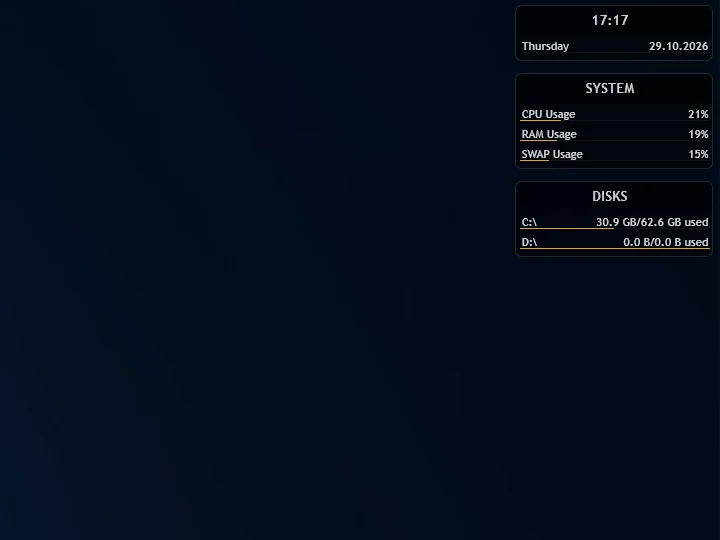
Rainmeter vs Paul’s Dashboard
The skin engine: infinite control, and you build it in .ini files.
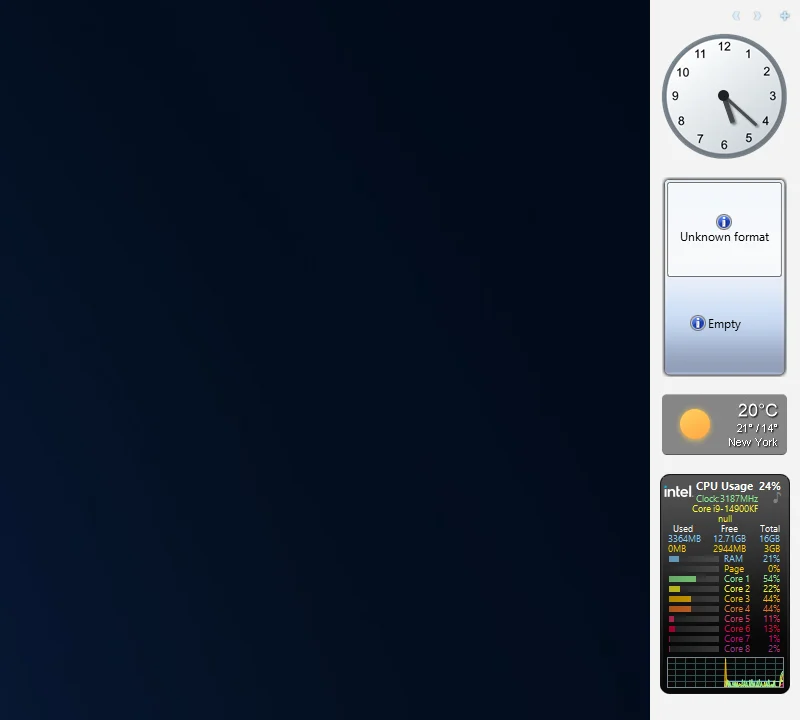
8GadgetPack vs Paul’s Dashboard
The Windows 7 gadgets brought back: familiar and tiny, on a platform Microsoft retired for security.
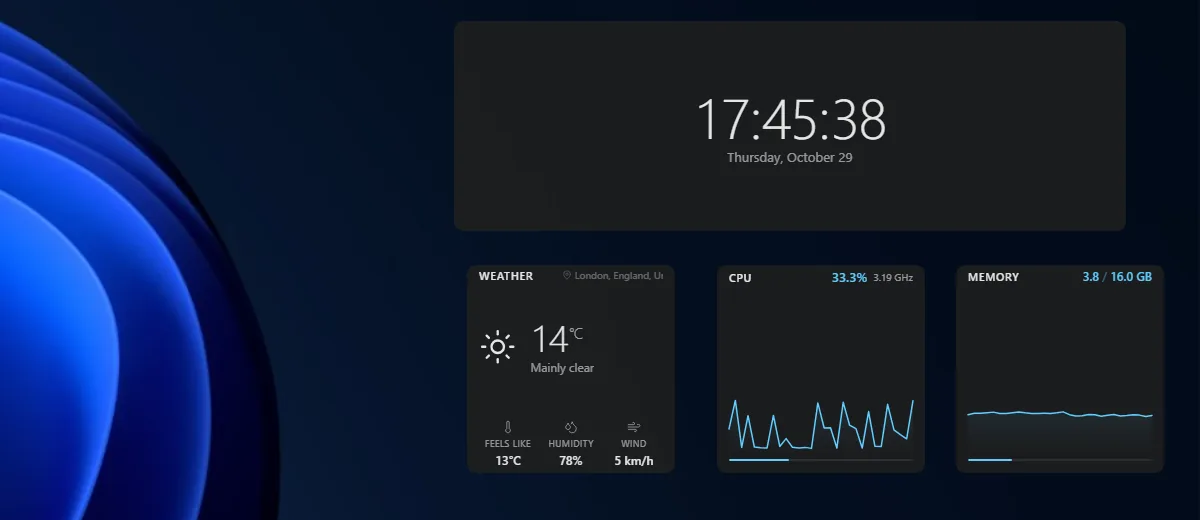
Themia vs Paul’s Dashboard
A polished, newer widget app with email and calendar accounts; a free tier, $19 for Pro.
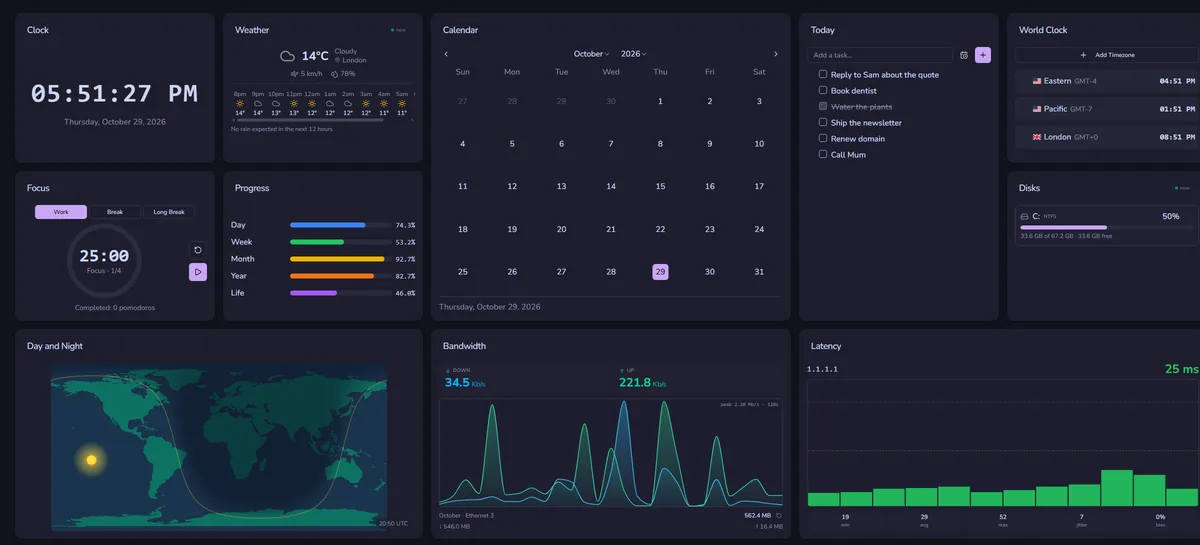
DeskDash vs Paul’s Dashboard
A paid wallpaper dashboard with a widget marketplace and SDK.
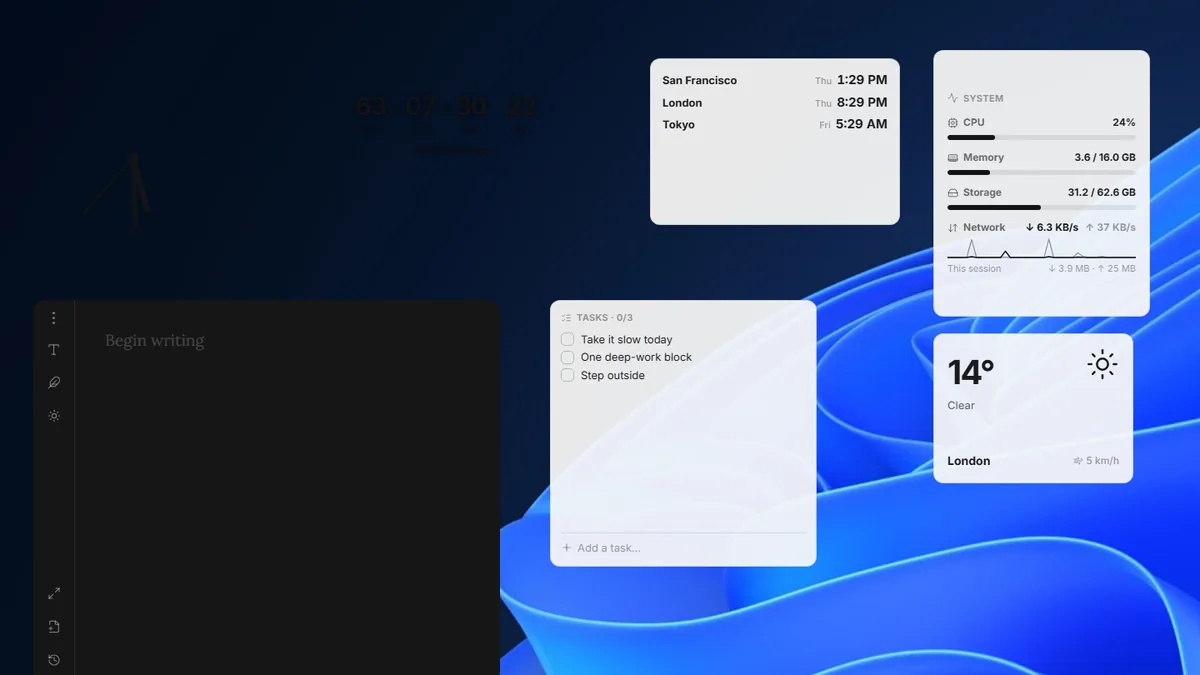
Layer vs Paul’s Dashboard
A small, free, open-source widget canvas with handy desktop tools.
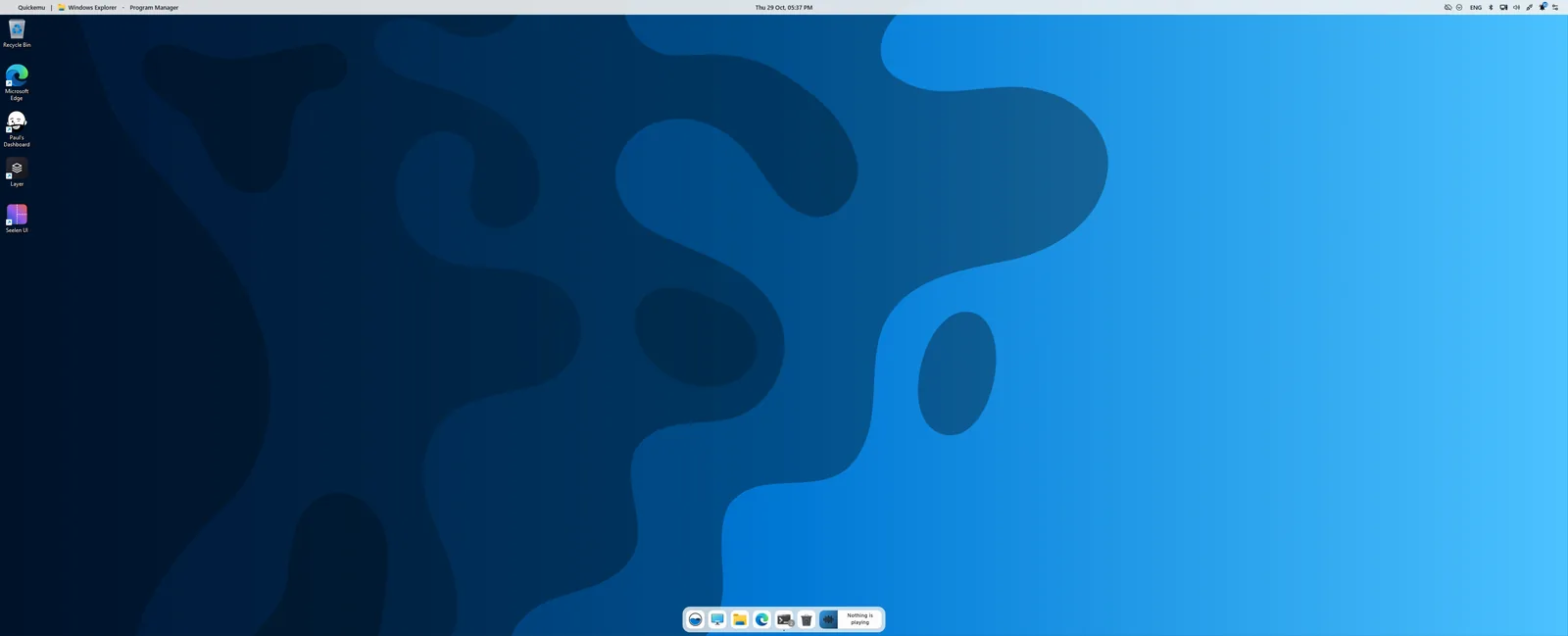
Seelen UI vs Paul’s Dashboard
A whole desktop environment: tiling, a new taskbar and launcher. Pairs with widgets more than it competes.
Put widgets on your desktop tonight
One installer, 100 widgets, no feed. Turn on Desktop widgets and they sit on your wallpaper.
Download for Windows